
iThemes Security 8.0 Brings New Design Features

Written by Michael Moore of Ithemes on July 28, 2021
Last Updated on July 29, 2021
A new version of iThemes Security just landed! Let’s take a look at iThemes Security 8.0, the most user-friendly, easy to configure, best-looking WordPress security plugin to secure and protect your WordPress website!
Is Your WordPress Website Secure?
DID YOU KNOW – A staggering 83% of WordPress websites are not upgraded or updated, is your website one of these?
Hacks happen due to lack of website upkeep and protection, like updating WordPress or plugins, plus using weak passwords. Contrary to popular belief, web designers and website hosting companies are not responsible for the security of your WordPress website; you are. It’s like using your computer without Anti-virus!
- A Note On Updating to iThemes Security 8.0
- New WordPress Security Features in 8.0
- Real-Time Security Activity Dashboard
- Two-Factor Authentication
- Refuse Compromised Passwords with Have I Been Pwned Integration
- New Setup & Onboarding: Get Your Site from Zero to Secure in Minutes
- New Security Site Templates to Fit Your Type of Site
- User Groups: Protection Levels for Users Great for Clients!
- Redesigned & Reorganised Settings to Simplify Site Security
- 6 New Security Settings Groups
- Questions? New In-Plugin Help for Settings
- New Powerful Settings Search
- Improved Accessibility
- Addition by Subtraction: Settings Removed in 8.0
- 404 Detection
- Away Mode
- Change Content Directory
- Multisite Tweaks
- WordPress Tweaks
- System Tweaks
- Miscellaneous Settings
A Note on Updating to iThemes Security 8.0
If you manually update to iThemes Security 8.0 from an earlier version of the plugin, you may see an error message in your WordPress admin dashboard. Simply refresh the page to resolve the error. The update may also trigger an email about a technical issue on your site. Simply discard the email.
During a WordPress plugin update, there is a point when two versions of the plugin are running at the same time. Both versions of a plugin running scripts at the same time can trigger an error.
Due to the limitations of the WordPress core updater, there is nothing we can do from our end to prevent this error from happening. Just rest assured everything is working properly! The error will resolve once you have refreshed any page on your site.
New WordPress Security Features in 8.0
iThemes Security 8.0 adds several new powerful features to make securing your site even easier: a real-time security activity dashboard, two-factor authentication, and the ability to refused compromised passwords.
Real-Time Security Activity Dashboard
Every day, lots of activity is happening on your site that you may not be aware of. Many of these activities can be related to your site’s security, so monitoring these events is vital to keeping your site secure.
The iThemes Security Pro plugin provides a real-time WordPress security dashboard that monitors security-related events on your site 24 hours a day, 7 days a week.The iThemes Security Dashboard is a dynamic dashboard with all your WordPress website’s security activity stats in one place.
Looking through the WordPress security log can be time-consuming and even confusing to understand. The new iThemes Security Dashboard brings your security logs to life by pulling together related entries and displaying them in a way that is relevant to you.
The new iThemes Security Dashboard utilizes new Security Cards to organize all your security activity in a more digestible way. Security Cards break the info from the logs down to easy to consume bite-sized nuggets of data.
Meet the iThemes Security Cards Available in Your Security Dashboard
We like to compare Security Cards to baseball cards. Baseball cards don’t give you information about every player in the MLB. The cards only care about the guy pictured on the front. Likewise, the Security Cards don’t show you every entry in the log. Instead, they only show you information related to that specific card.
1. Site Scans

See the history of your iThemes Security Site Scans
2. User Security Profiles Pro Only

Click on any username to get their security overview. You can send 2fa reminders from this card, force any user to log out, and force everyone to update their passwords.
3. User Security Profile Pro Only

Pin a single user’s profile to your dashboard, and see their user role, password strength and age, whether or not they have two-factor enabled, and when they were last on the site.
4. Active Lockouts

Display all active lockouts. If your client locked themselves out, you can quickly clear the lockout from this card.
5. Lockouts

See a history of lockouts on our site.
6. Bans Overview

View a history of IPs banned by iThemes Security.
7. Brute Force Attacks

Displays a graph that charts brute force activity.
8. Database Backups
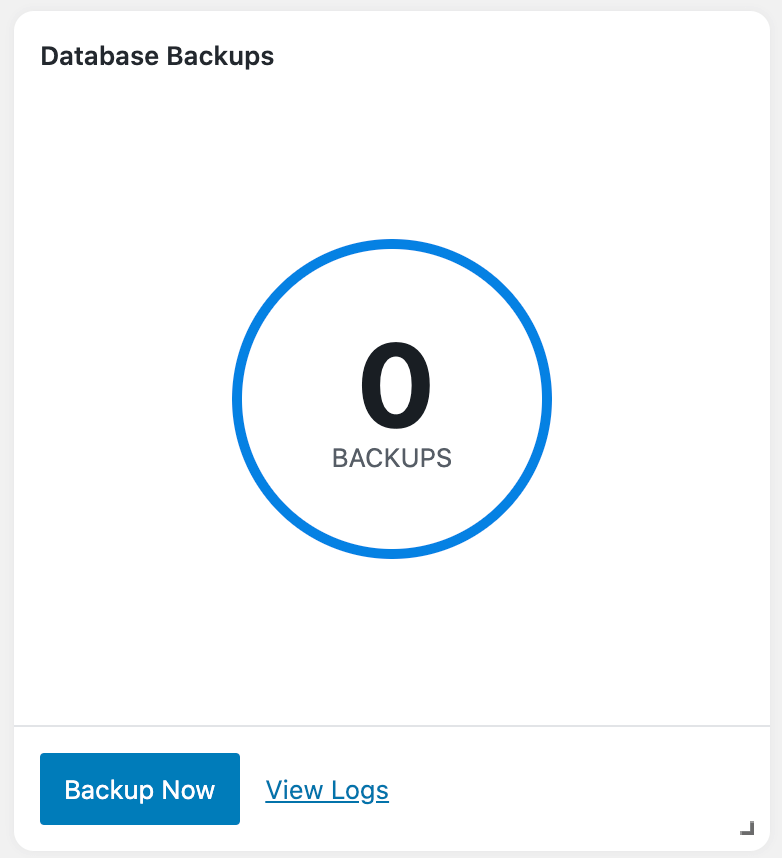
View a 30-day history of backups and create a new database backup.
9. Update Summary Pro Only

Display the number of WordPress, plugin, and theme updates over a specific time.
10. Banned Users

Manage your website’s banned hosts list.
11. Trusted Devices Pro Only

Displays a graph charting approved, auto-approved, and blocked devices.
Two-Factor Authentication
The Security Dashboard isn’t the only new feature coming in iThemes Security 8.0. Now iThemes Security offers two-factor authentication to secure all your WordPress logins!
Two-factor authentication is a process of verifying a person’s identity by requiring two separate methods of verification. Google shared on its blog that using two-factor authentication can stop 100% of automated bot attacks. I really like those odds.
To get started with Two-Factor Authentication, navigate to the security settings’ Features menu and enable the Two-Factor. After enabling Two-Factor click the settings cogwheel.
The three authentication methods provided by iThemes Security:
1. Mobile App – The mobile app method is the most secure method of two-factor authentication provided by iThemes Security. This method requires you to use a free two-factor mobile app like Authy.
2. Email – The email method of two-factor will send time-sensitive codes to your user’s email address.
3. Backup Codes – A set of one-time use codes that can be used to login in the event the primary two-factor method is lost.
Alright, let’s move on to the rest of the two-factor settings.
Disable on First Login – When you enable the Force Two-Factor Authentication feature for specific User Groups, they will be required to enter the two-factor token sent to their email address the next time they log in. Enabling this setting will simplify the onboard flow when users first log in.
On-board Welcome Text – When you enable the Force Two-Factor Authentication feature for specific User Groups, they will be required to enter the two-factor token sent to their email address the next time they log in. Enabling this setting will simplify the onboard flow when users first log in.
Refuse Compromised Passwords with Have I been Pwned Integration
iThemes Security now uses a service by Have I Been Pwned to detect whether passwords have appeared in a data breach. A data breach is typically a list of usernames, passwords, and often other personal data that was exposed after a site was compromised.
Have I been Pwned keeps track of the passwords compromised in many data breaches and makes them available via an API. To check if a password is included in a data breach, we send the first 5 characters of a hashed (sha1) version of the password.
Note: iThemes Security never sends plaintext passwords to Have I Been Pwned. Instead, 5 characters of the hashed password are sent over an encrypted connection to their API.
You can find the Refused Compromised Password with the rest of the Password Requirement features.
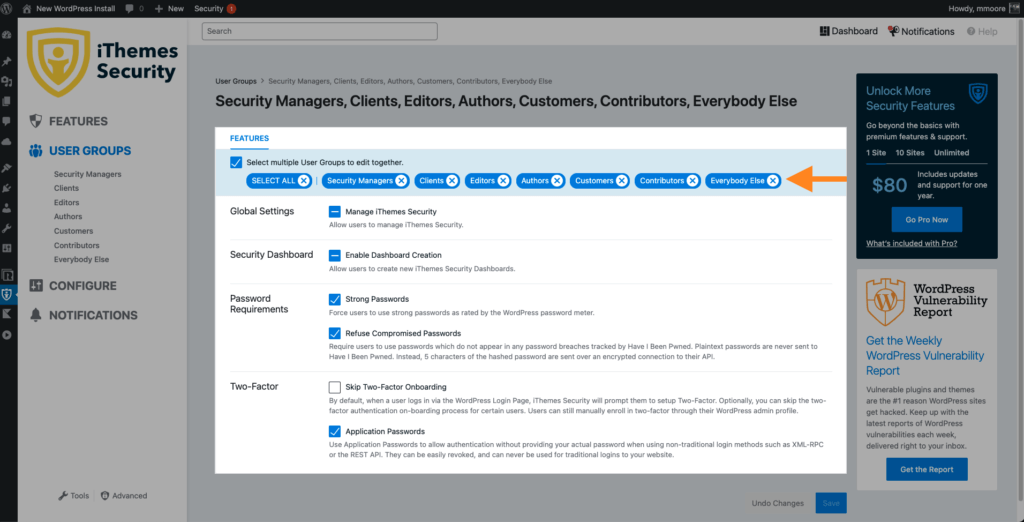
To start protecting your users with Password Requirements, navigate to the User Group settings and check the Select multiple User Groups to edit together box.

Now select the User Groups that you want to enforce a password policy, check all of the boxes in the Password Requirements section, and then click the save button.
New Setup & Onboarding: Get Your Site from Zero to Secure in Minutes
Many website owners don’t realize the importance of website security until after they’ve been hacked. If you’ve ever been in this situation, the last thing you want to deal with is a time-consuming, complex task of figuring out website security settings and configuring tools. You just want to make sure you never get hacked again.
The new iThemes Security setup and onboarding experience is designed to allow anyone to secure their WordPress website in under 10 minutes, without needing a degree in cybersecurity. There are also time-saving setup tools if you use iThemes Security for clients.
Knowing that you have enabled all the right security settings for your website will leave you feeling like your site has never been more secure. Plus, once the plugin is set up on your site, iThemes Security will go to work on your behalf, working 24/7 to stop automated attacks, monitor for suspicious activity, strengthen user credentials and scan for vulnerable plugins and themes
Let’s take a look at some of the highlights of the new iTheme Security setup/onboarding experience.
New Security Site Templates to Fit Your Type of Site
iThemes Security now allows you to select your type of site to apply the best security settings.

Why? An eCommerce site requires a different level of security than your average blog, so site templates help iThemes Security auto-configure the best security settings for your website.
You can now choose from six different site templates, including:
1. Ecommerce – websites that sell products or services
2. Network – websites that connect people or communities
3. Non-Profit – websites that promote your cause and collect donations
4. Blog – websites that share your thoughts or start a conversation
5. Portfolio – websites that showcase your craft
6. Brochure – simple websites that promote your business
To make choosing your site type even easier, iThemes Security checks to see if you have any LMS plugins, ecommerce plugins, donation plugins, or network plugins installed and recommends the best site type for you. For example, if you have a membership site using Restrict Content Pro, we will recommend that you use the ecommerce site template.
User Groups: Protection Levels for Users:
Similar to the type of website you have, different types of users require different levels of security. During the iThemes Security setup process, you will be asked a series of questions to identify your website’s key user groups. Once the different types of users are identified, you can decide the right level of protection for each group.
How are user groups useful? Here are a few examples of how User Groups are useful for securing your site:
For Clients – Let’s say you are configuring iThemes Security on a client’s website. You will decide whether or not they are required to use two-factor authentication and if they should have access to the iThemes Security settings.
For Customers – If you have an eCommerce website, you will decide whether or not you want to protect customer accounts with a password policy.
Need to change something? Don’t worry. If you are the type of person who likes to double-check your work, you will have a chance to review the settings enabled for each user group before they are applied. If you are the type to not second guess your work, you can skip the review process.

Redesigned & Reorganized Settings to Simplify Site Security
Setup and onboarding isn’t the only new thing in iThemes Security. We overhauled the security settings inside iThemes Security, and trust me. It is a lot more than a paint job!
The most obvious upgrade in iThemes Security 8.0 a totally new look and feel for the security settings. (I think it is safe to say that WordPress security has never looked better.) In iThemes Security 8.0, settings are now redesigned and reorganized to help simplify site security.
6 New Security Settings Groups
Settings have been consolidated and simplified into 6 settings groups, including Login Security, Lockouts, Site Check, Utilities, Tools and Advanced.
Let’s take a look at each setting group:
1. Login Security
The Login Security group includes the security features designed to lock down your WordPress login.

2. Lockouts
The lockout group includes the security features designed to identify and lockout the bad guys.
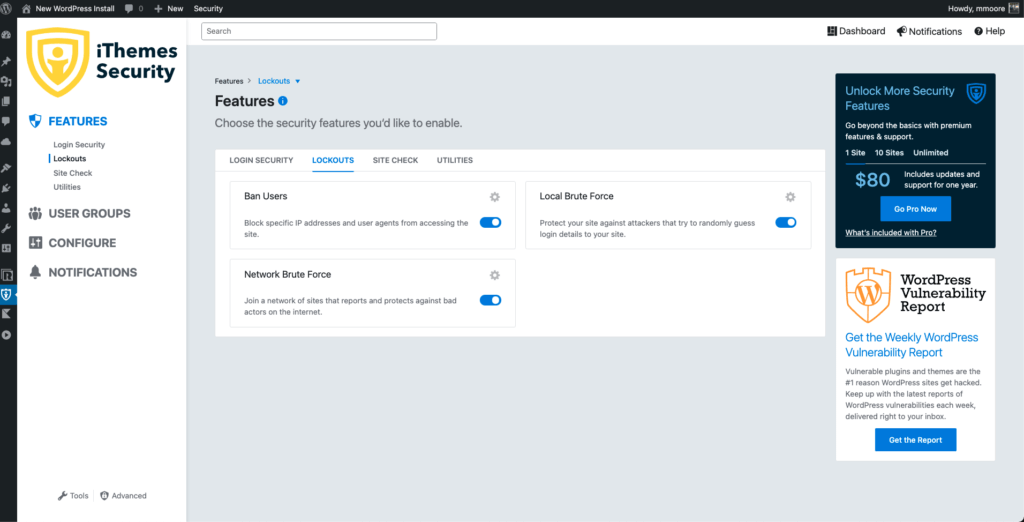
3. Site Check
The Site Check group includes the security features designed to spot vulnerabilities and malicious changes.
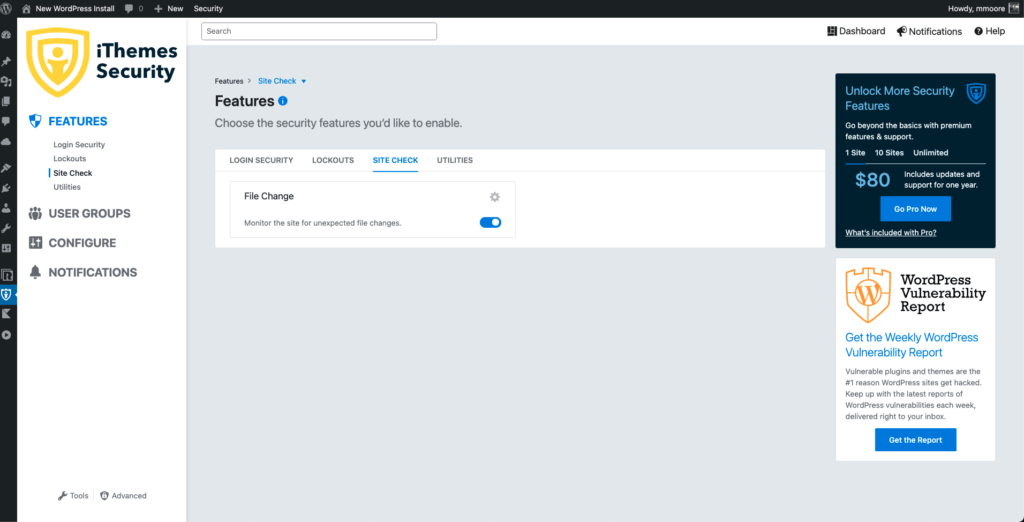
4. Utilities
The Utilities group includes the various security utilities available in iThemes Security.

5. Tools
The Tools group of settings includes most of the security checks and tools you can run.
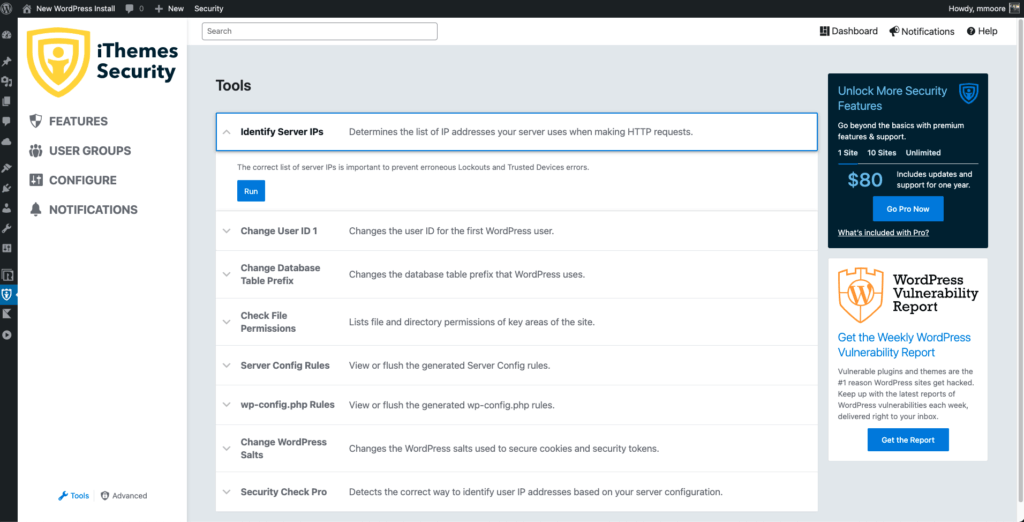
6. Advanced – The Advanced group of settings includes most of the security checks and tools you can run.

Questions? New In-Plugin Help for Settings
If you ever run across anything in iThemes Security that you don’t quite understand, don’t worry. Help is only a click away. On just about every page of the security settings, you will find a help icon.

If you ever run across anything in iThemes Security that you don’t quite understand, don’t worry. Help is only a click away. On just about every page of the security settings, you will find a help icon.

Click the More link in the Help icon text box to see a Help Page with links to blog posts, tutorials, and documentation relevant to the page you’re on.

The new in-plugin help inside iThemes Security 8.0 is there to make sure you have the right help when you need it.
New Powerful Settings Search
The new search makes it easier to find what you need. Not to brag, but it may be the best search tool in the history of WordPress plugins.

Bonus: Settings Now Use React JS
We mentioned earlier that the settings redesign was a lot more than just a paint job. iThemes Security codebase has been updated to use React JS. Upgrading to React JS allows us to take advantage of all the cool things getting added to WordPress. And eventually, it will lead to deeper integrations with other iThemes products.
Improved Accessibility
We worked hard on improving the accessibility of iThemes Security in this release. You should be able to navigate the full interface by keyboard and screen readers should announce the page’s contents and controls appropriately. There are more improvements coming, and if you spot anything we could do better, let us know! We’re committed to making iThemes Security as accessible as WordPress.
Addition by Subtraction: Settings Removed in 8.0
iThemes Security has been securing and protecting WordPress websites for seven years. In that time, the number of features and settings in iThemes Security has grown dramatically.
With how much everything has changed since iThemes Security 1.0, we thought 8.0 would be a great opportunity to reassess the existing security features and settings in iThemes Security 8.0 to see if they still made sense in 2021. We e only want to include security features that make a real impact on securing your website. Not only that, the level of security features we offer need to outweigh the frustration of using it.
iThemes Security adds to the user experience by subtracting settings that no longer make sense in today’s world. In 8.0, we’ve removed settings that were an outdated approach to site security or that caused more frustration than provided a security benefit.
To recap, we’ve removed certain settings in iThemes Security 8.0 based on these reasons:
- The security setting didn’t actually provide any meaningful security – Again, we only want to include security features that have a real impact on securing your website.
The security setting no longer makes sense in today’s world – In the past seven years, there have been many changes to WordPress, including the security tools and strategies used to identify and stop cyber-attacks. Some approaches to site security 5+ years ago have simply become outdated.
The security setting caused more frustration than a security benefit. The level of a security feature needs to outweigh the frustration of using it. As we’ve helped customers through some headaches with certain features, we’ve learned which features are problematic and simply not worth keeping when the security benefit does not outweigh the problems a feature causes.
Protect Your WordPress Website Today With Website Guardian
Join hundreds of businesses like yours who trust InterwebDEFENCE to protect their websites and livelihood. Using our proven website security analysis and best-in-class AI ‘Website Guardian” software, we are able to protect, monitor and backup your WordPress website.
Go ahead, keep the good guys In and the bad guys out – Click HERE to see our Website Guardian security plans NOW
PLUS
Find out about our unconditional ‘Double Protection’ Guarantee. This guarantee is better than risk free!
We’ll have you scanned, protected and secure in no time, giving you total peace of mind that your website is safe, leaving you to focus on your business success.